Yes, Google Analytics can track social media.
Google Analytics 4 (GA4) records the visits, engagement, and conversions that social platforms send to your website, all grouped under two channels: Organic Social and Paid Social. It will not tell you what happens inside Instagram or LinkedIn, but it is the best free way to see what social does once people land on your site.
This guide walks through exactly how to track social media in GA4, from finding the right report to tagging your links and measuring conversions. At the end, we will show a faster way to pull it all into one report you can actually share.
Key takeaways
- GA4 shows social media traffic under the Organic Social and Paid Social channel groups in the Traffic acquisition report.
- To see conversions from social, mark the actions that matter (sign-ups, purchases, demo requests) as key events, then read the attribution reports.
- UTM parameters are what keep your social links from being miscounted as "Direct" or "Unassigned."
- GA4 measures on-site behaviour only. For likes, reach, and impressions you still need each platform's native analytics.
Can Google Analytics track social media?
Yes. GA4 automatically detects when a visit comes from a social platform and files it under the Organic Social or Paid Social channel. From there you can see which network sent the visit, which page they landed on, how long they stayed, and whether they completed a goal.
What GA4 cannot do is measure activity that happens on the social platform itself. Likes, comments, shares, follower growth, and impressions all live inside each network's own analytics. Think of it this way: the platforms tell you what happens on social, and GA4 tells you what happens after someone clicks through to your site.
What social media metrics can you track in GA4?
Once social visitors reach your website, GA4 can report on:
- Sessions and users from social so you know how much traffic each network actually drives.
- Engagement rate and average engagement time to see whether that traffic is genuinely interested or bouncing straight off.
- Key events and conversions such as sign-ups, downloads, or purchases attributed to social.
- Landing pages so you can see which content social audiences respond to.
- Source and medium detail to separate, say, a LinkedIn ad from an organic LinkedIn post.
For the metrics GA4 does not cover, like reach or engagement rate on the posts themselves, read our guide on social media metrics!
How to track social media traffic in GA4 (step by step)
-
Step 1: Open the Traffic acquisition report
In GA4, go to Reports > Acquisition > Traffic acquisition. By default this report groups traffic by "Session default channel group," which already splits out Organic Social and Paid Social for you.
-
Step 2: Filter to your social channels
Use the search box above the table to filter for "social," or click the dropdown and switch the dimension to Session source / medium to see the individual networks (facebook / organic, linkedin.com / referral, and so on). This is where you compare platforms side by side.
-
Step 3: Add engagement and conversion columns
Look beyond sessions. Sort by engagement rate and average engagement time to find the networks sending quality traffic, not just volume. If you have key events set up (see below), add them as a column to see which channel actually converts.
-
Step 4: Tag your links with UTM parameters
This is the step most people skip, and it is why social traffic often shows up as "Direct" or "Unassigned." When a link is shortened or a platform strips the referrer, GA4 cannot tell where the click came from. UTM parameters fix that by labelling the link yourself.
Tip: Use Google's Campaign URL Builder
How to track social media conversions in GA4
Set up your key events
A conversion in GA4 starts as a key event (Google renamed "conversions" to "key events" in 2024). In Admin > Events, mark the actions that matter to your business (form submissions, trial sign-ups, purchases) as key events. Until you do this, GA4 has nothing to attribute back to social.
Read the attribution reports
Once key events are recording, open Advertising > Attribution or the conversion columns in Traffic acquisition. GA4 uses a data-driven attribution model by default, which spreads credit across every touchpoint in the journey, so a social visit that assisted a later conversion still gets recognised. This matters for social, which often introduces people to your brand long before they convert.
If you want to put a dollar value on those conversions and prove [LINK: social media ROI -> /blog/social-media-roi/], assign a value to each key event so GA4 can total it up for you.
How to build a social media dashboard in Google Analytics
GA4's standard reports are fine for spot checks, but for a repeatable view you can build a custom Exploration. Go to Explore, start a blank exploration, add Session source / medium as a dimension and sessions, engagement rate, and key events as metrics, then filter to social traffic. Save it and it becomes your reusable social media dashboard inside GA4.
The catch: an Exploration only shows GA4 data. It will not include the likes, reach, or spend that live in Facebook, LinkedIn, or Instagram, so you still end up switching between tools to get the full picture.
The limits of tracking social media with GA4
GA4 is powerful and free, but it has real blind spots for social marketers:
- It only sees on-site behaviour, so platform metrics like reach and engagement are missing.
- Untagged or shortened links get misattributed, which quietly undercounts social.
- Pulling GA4 together with each platform's native analytics is manual and slow, especially across multiple clients or accounts.
That last point is where most of the time goes: logging into GA4, then Facebook, then LinkedIn, then a spreadsheet, every single month.
A faster way: bring GA4 and social data into one report
Instead of stitching tools together by hand, DashThis pulls your Google Analytics 4 data and all your social networks (Facebook, Instagram, LinkedIn, YouTube, and more) into one automated report. Website traffic, on-site conversions, and native platform metrics like reach and engagement sit side by side, so you can finally see how social activity translates into site results.
You can set it to email itself to you or your clients on whatever schedule you choose, which turns monthly reporting from an afternoon into a couple of clicks.
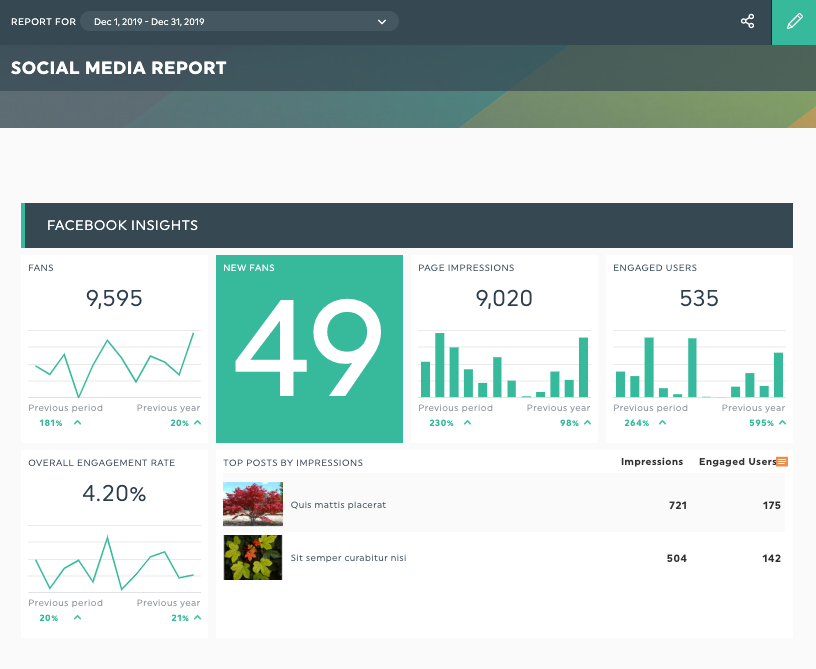
Build your social media report in minutes, no manual GA4 exports.
Prefer a head start? Grab our ready-made social media report template today.
FAQ
Can Google Analytics track social media?
Yes. GA4 tracks the traffic, engagement, and conversions that social platforms send to your website, grouped under Organic Social and Paid Social. It does not track activity that happens on the platforms themselves, such as likes or reach.
Does GA4 track social media automatically?
Partly. GA4 automatically classifies recognised social sources into the social channels, but shortened or untagged links can be misattributed. Adding UTM parameters to your social links makes tracking reliable.
How do I see which social platform drives the most traffic?
Open Reports > Acquisition > Traffic acquisition and switch the dimension to Session source / medium. This breaks social traffic down by individual network so you can compare them.
How do I track social media conversions in GA4?
Mark the actions that matter as key events in Admin > Events, then use the attribution reports to see which social channels drove or assisted those conversions.
What can GA4 not tell me about social media?
GA4 cannot report on-platform metrics like impressions, reach, follower growth, likes, or ad spend. For those you need each platform's native analytics, or a reporting tool that combines both.
Track your Google Analytics social media traffic & all your social networks data in the same report with DashThis.
Try it free!
 The Team at DashThis
DashThis is the power behind thousands of reporting dashboards created by and delivered for agencies and digital marketers every month.