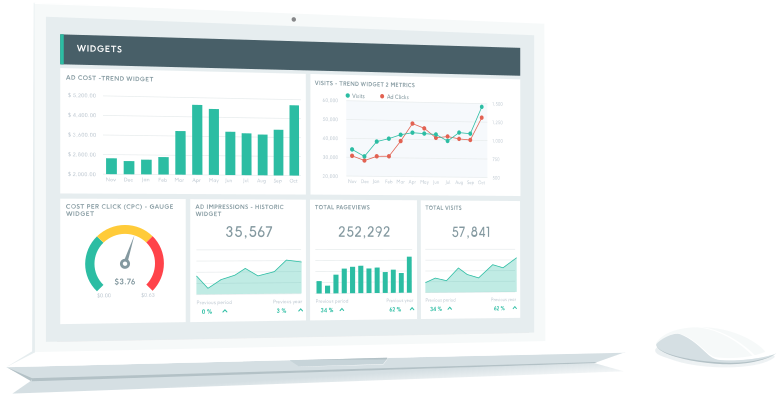
TLDR: Ask Claude, ChatGPT or any AI connected to DashThis through MCP to add numbers from almost any source: another tool, an existing file, even a screenshot.
It sorts your numbers and checks the format with you, then adds the numbers and the widgets to your dashboard.
You decide with your AI how often your numbers update.
We're quite excited about this one! 🎉 For a long time, we asked ourselves: how do we give you access to almost every data source you want? Some tools have no public API, or don't open it to a third party like us. So we flipped it around: your AI fetches the numbers, and DashThis turns them into widgets.
A few examples:
- A homemade CRM in Notion or in a spreadsheet
- Salesforce, GoHighLevel, Slack, monday.com, or any tool already connected to your AI
- The sales file your client emails you every month
- And much more: you're only limited by your creativity.
It's brand new, so tell us how you use it. Your feedback shapes what comes next.
How to get started
To make it super easy, we crafted this prompt you can copy into Claude or ChatGPT. It's designed to onboard you by asking a few questions, and then it does the job for you.
Help me add numbers to a DashThis dashboard.

Ask me, one at a time: where the numbers come from, which client's dashboard they go on, and the period (match the dashboard's).

If DashThis has a native integration for that source, give me the link. If not, offer to tell DashThis I'd like a native integration for that tool.

Get the numbers and show me how DashThis will read them. Once I confirm, save them and add a few widgets.

Last, offer a routine that keeps them up to date.
Here are four recipes we ran on a real DashThis dashboard. ACME Hardware is our made-up client, and so are the numbers.
Recipe 1: A homemade CRM in Notion as a custom data source
From our CRM in Notion, take won deals by month and channel for ACME, add them to the ACME Hardware dashboard, then set up a routine for the 1st of every month.”
The CRM, a plain Notion table:
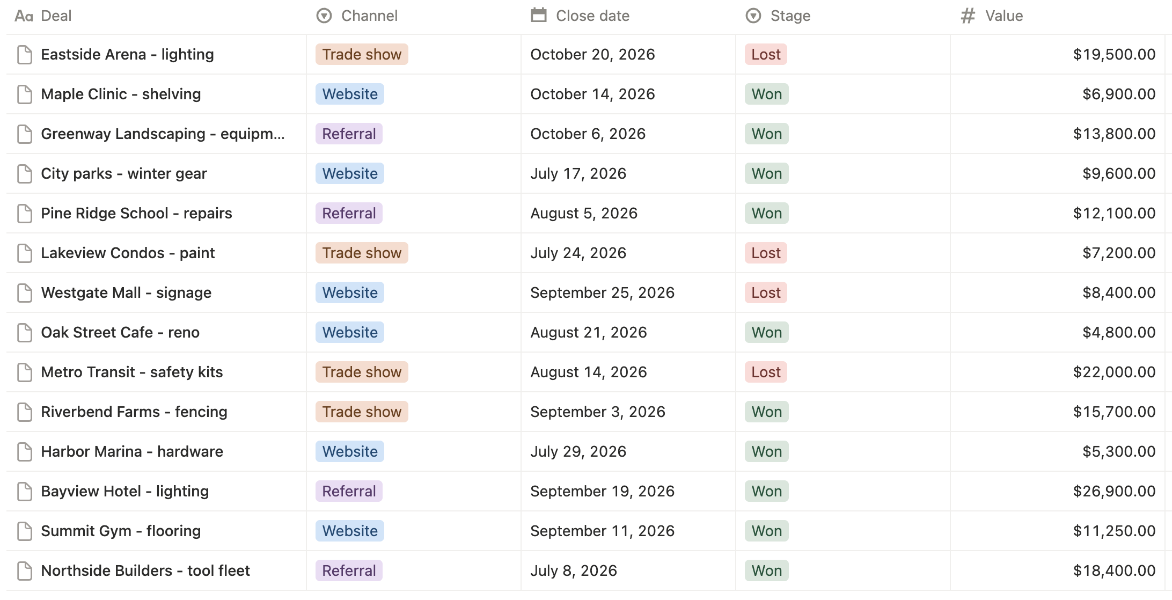
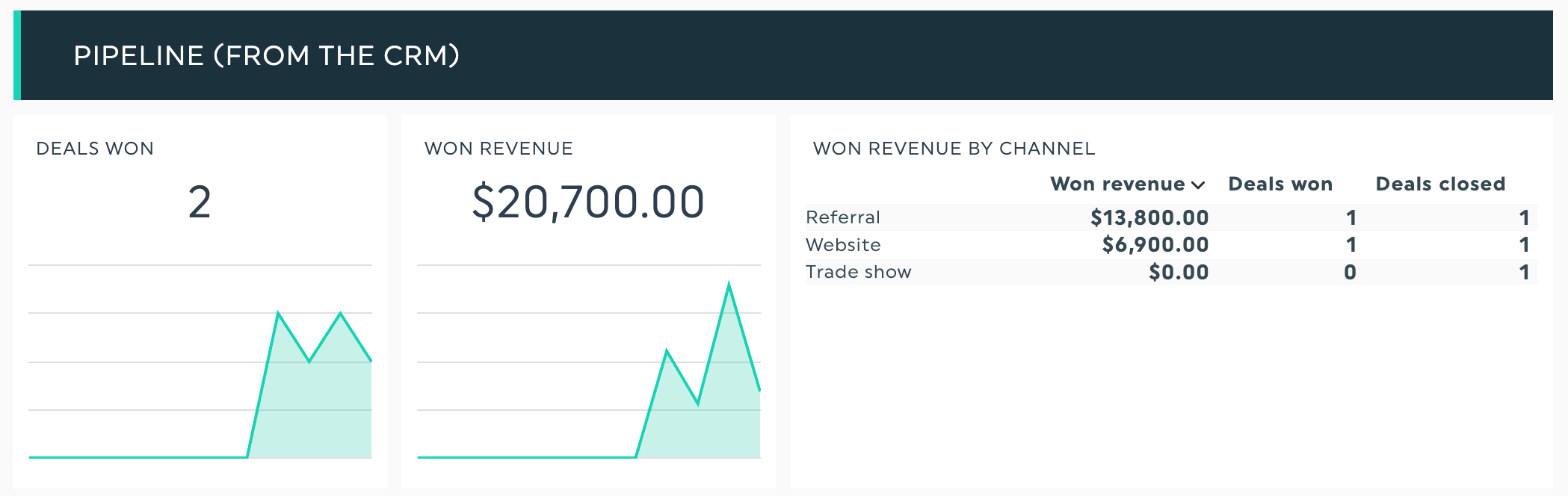
Claude totals deals won and won revenue by month and channel, and adds a Pipeline section once you confirm.
Then you decide with your AI how often it updates. Ours is a scheduled task in Claude:
On the 1st of every month at 8:00, read won deals from our Notion CRM, total them by month and channel, and send the latest numbers to ACME's CRM source in DashThis. Tell me what you saved and which dashboards show it.”
Here's the Pipeline section with October, added by the routine.
Recipe 2: A tool already connected to your AI
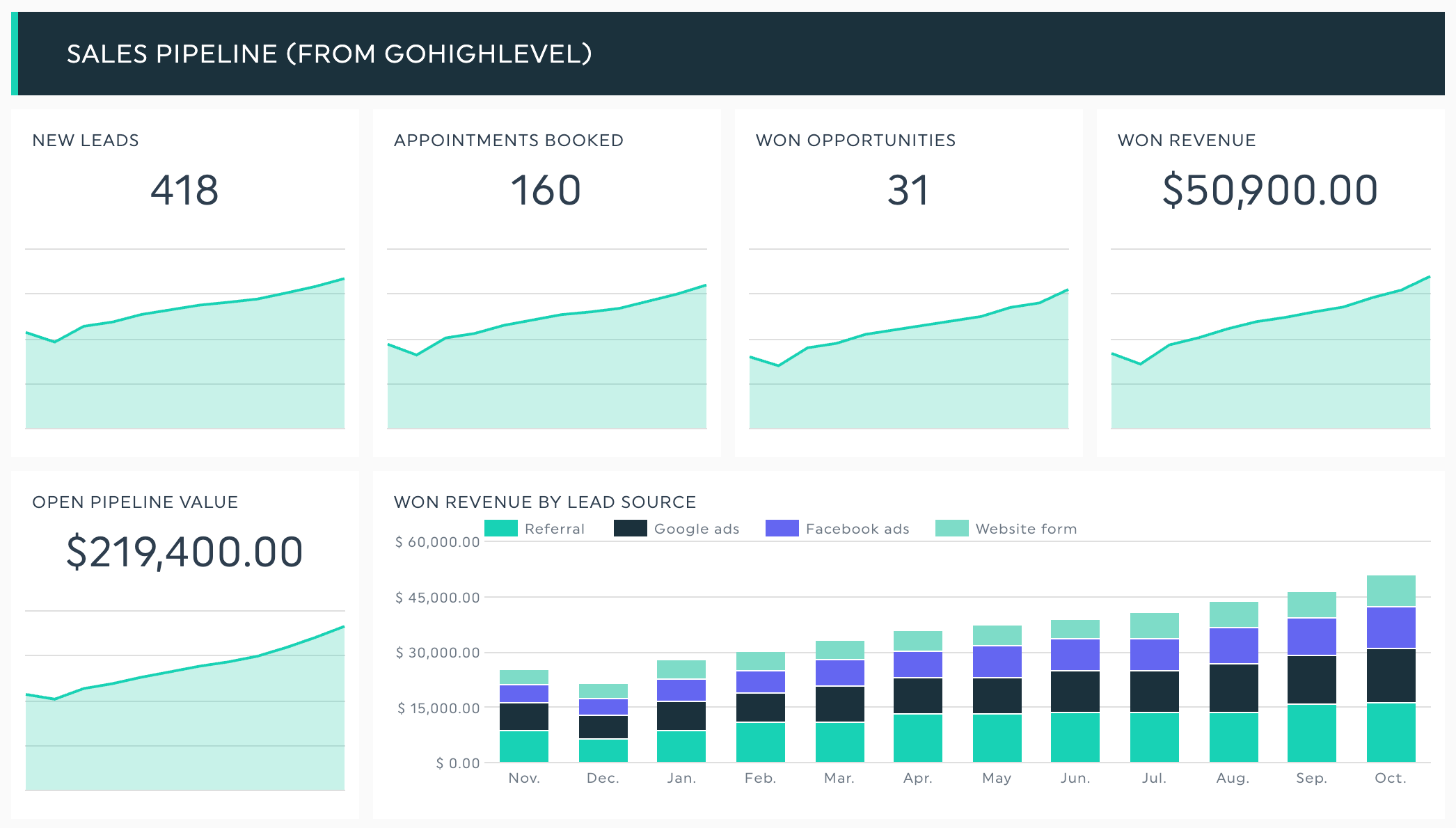
This is the one we love most! Many tools already expose their reports through their own MCP connector, so your AI can use them. With GoHighLevel as the example, once it's connected to your AI:
Make me a report on our GoHighLevel sales over time, translate it to fit DashThis, then set a routine so it updates every month.”
Here's the kind of section that report becomes in DashThis, with made-up numbers:
We did the same for our own stack with Userpilot, our in-app survey tool:
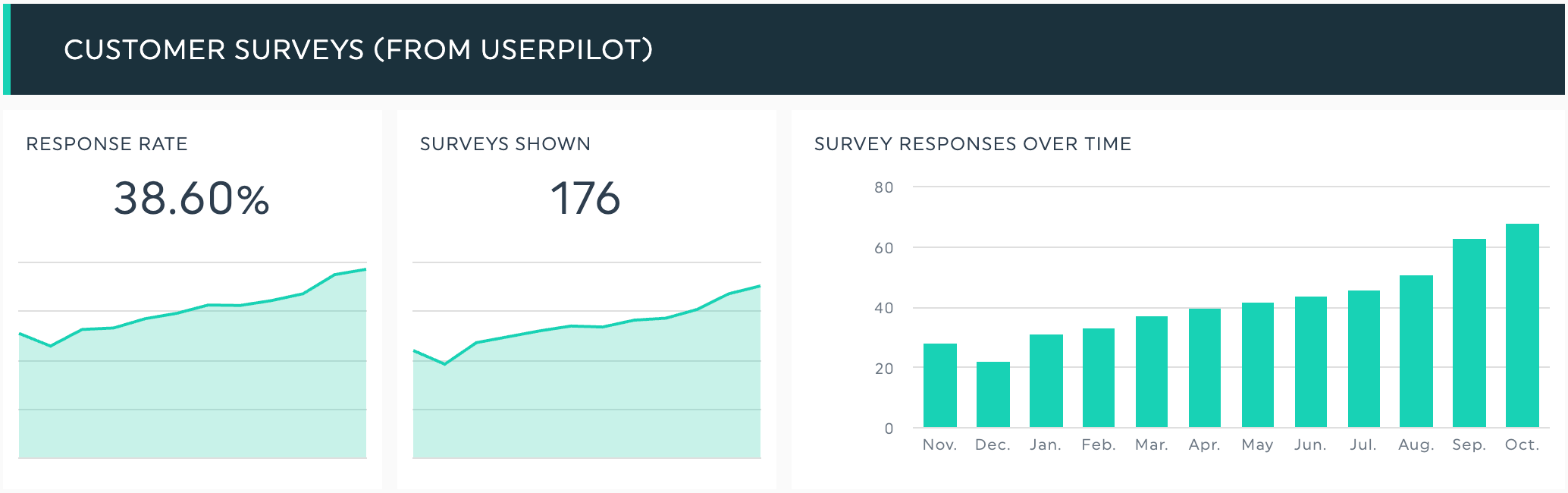
Take our in-app survey results from Userpilot by month, translate them for DashThis, and add a Customer surveys section to the ACME dashboard.”
Claude read the monthly survey totals through the Userpilot connector and sent them to DashThis. It worked like a charm.
Recipe 3: The sales file your client emails you
With Gmail connected to your AI too, you don't even open the email:
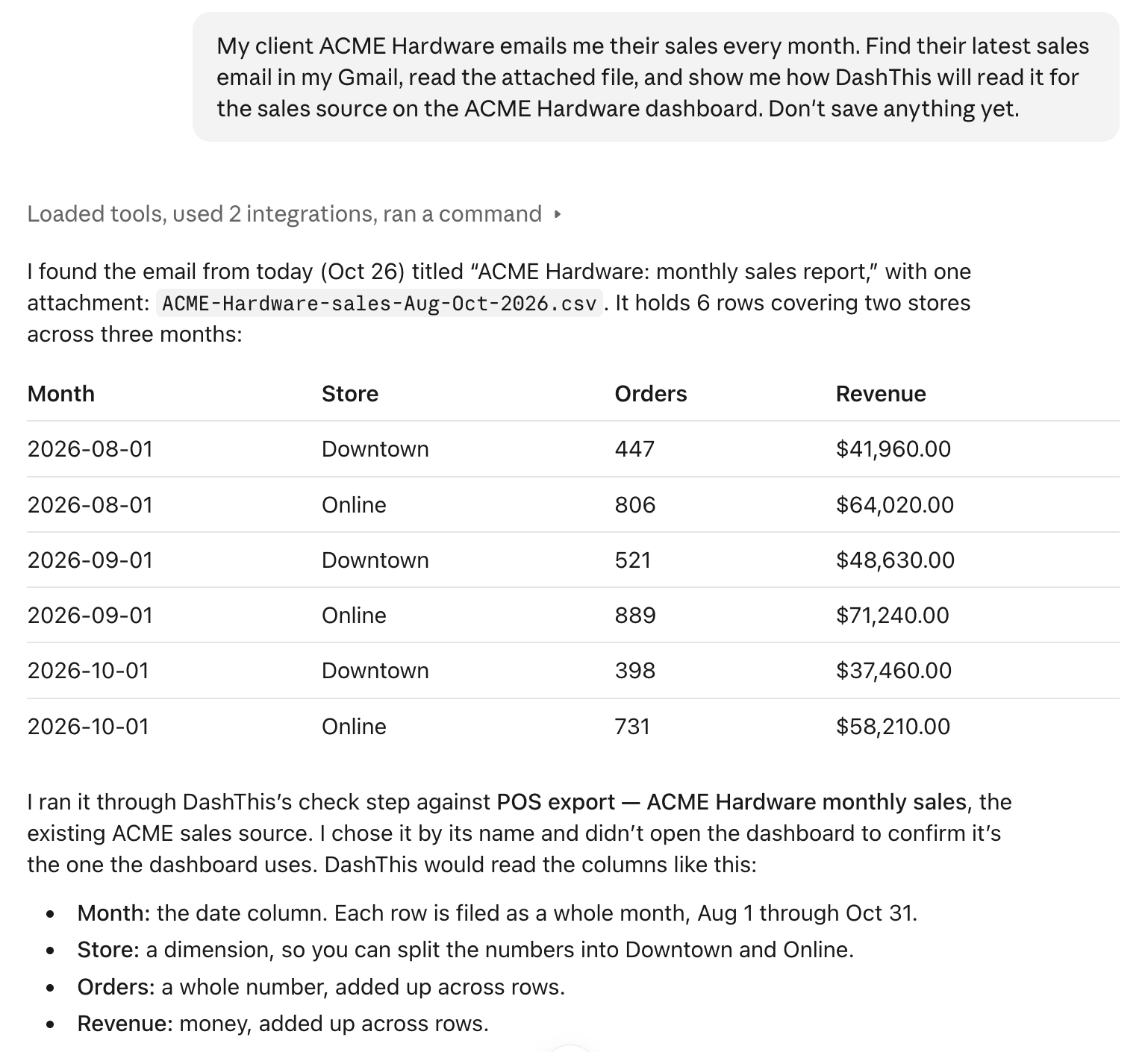
My client ACME Hardware emails me their sales every month. Find their latest sales email in my Gmail, read the attached file, and show me how DashThis will read it for the sales source on the ACME Hardware dashboard.”
Your AI finds the email, reads the attachment and checks the format with DashThis before saving anything:
Once you confirm everything, it goes into your client's Sales section. Like recipe 1, you can turn it into a monthly routine that sends your latest numbers, so next month's email is picked up on its own. Rather paste the file yourself? That works too.
Recipe 4: A semi-automatic import from a screenshot
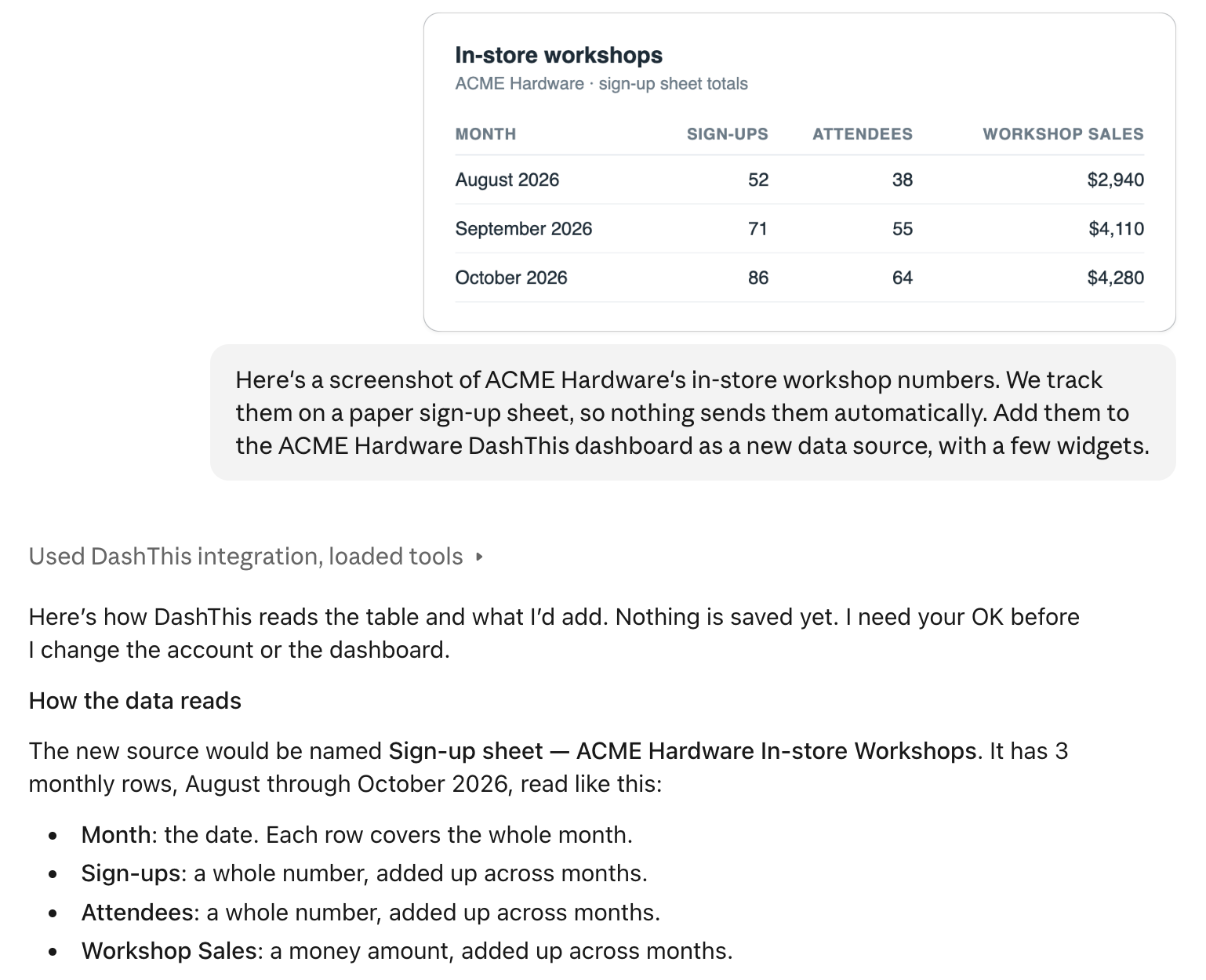
Sometimes it's simply easier to take a screenshot and send it. Think of the in-store workshops your client tracks on a paper sign-up sheet: no tool will ever send you those numbers.
Paste the screenshot into Claude and ask:
Here's a screenshot of ACME Hardware's in-store workshop numbers. We track them on a paper sign-up sheet, so nothing sends them automatically. Add them to the ACME Hardware DashThis dashboard as a new data source, with a few widgets.”
Claude reads the numbers right off the image and shows you how DashThis will read them before saving anything:
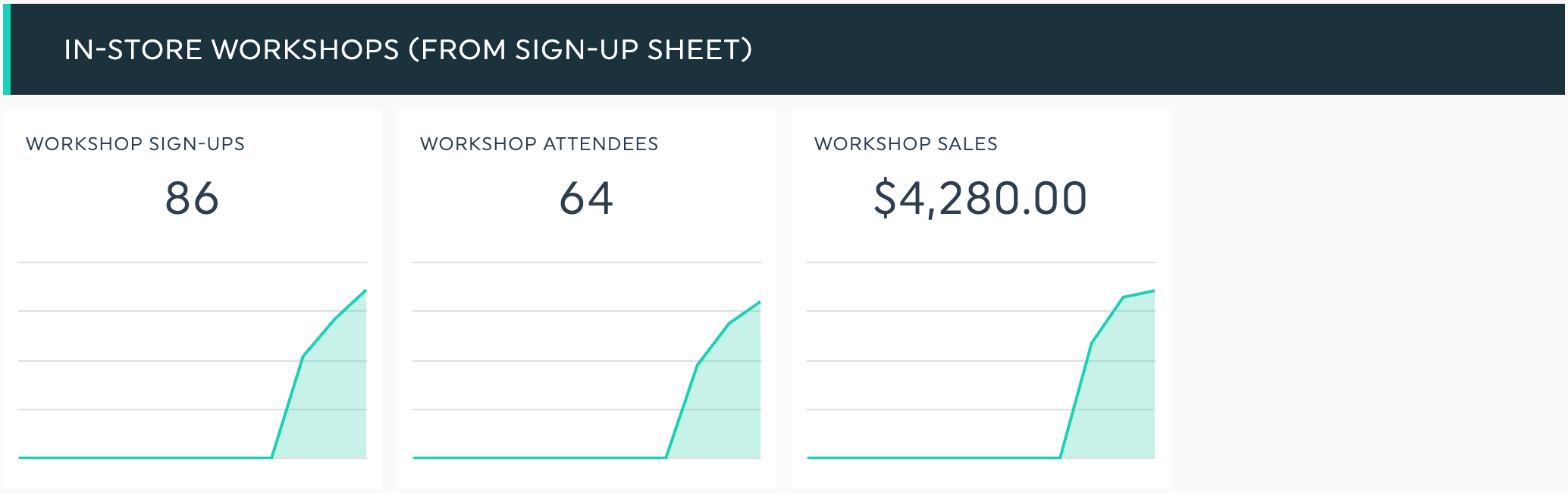
Once you confirm, they show up in a new section of your client's dashboard:
Not sure yet how to automate a source? This is a great place to start. Ask your favorite AI assistant to remind you every month, reply with a fresh screenshot, and your dashboard stays up to date.
More recipes to try
Here are a few ideas we brainstormed that could be useful. They follow the same pattern as the recipes above: connect the tool to your AI, then ask.
- Reports that land in Slack. "When the monthly report lands in #client-acme, pull the numbers and update their DashThis dashboard."
- Leads your Zapier or Make automations already log. "Count the leads our zap logged for this client last month, by source, and send them to DashThis."
- The summary email your tools send every month. "Find last month's summary email from our call tracking tool, read the PDF, and put the numbers on the client's dashboard."
- Pipeline and revenue from your CRM or accounting tool. "From Salesforce, get the won revenue from this client's campaigns last month and add it to their dashboard." It works the same way with Pipedrive, QuickBooks or Xero.
- Form fills from Typeform. "How many quote requests came in through Typeform this month? Add them to the client's dashboard."
- Calls booked in Calendly. "Count the discovery calls booked in Calendly for this client last month and add them as a widget."
- Your brand's visibility in AI answers. "Get this month's AI visibility score from Peec AI for this brand and chart it next to organic traffic."
Got another idea? Tell us, we'd love to hear it!
Best practice: send the summary, not the raw export
A custom source works best when it looks like the report it feeds: one row per period, a breakdown only when a widget splits by it, and formats settled before anything goes in (a currency sign on money, percent as a percent, one date format). The source stays light for years, and the totals stay exactly as you decided them.
So ask your AI for the totals first: "Sum this by month and store, then add it to the dashboard." And give counts a plain name, like "Deals won" or "New clients", so they read as numbers.
How it works behind the scenes
This is the heart of it. DashThis speaks MCP, or Model Context Protocol, the language your AI already uses with your other tools. So numbers travel from one connector to the next: Claude reads your Notion CRM or Userpilot through their connectors, then hands the totals to the DashThis MCP connector. Your AI gets the numbers and keeps them current on the rhythm you set in plain words.
DashThis keeps every source tidy:
- Each source is saved on our side, so your numbers stay exactly as you approved them, every time the dashboard loads.
- Each source keeps one rhythm, such as daily, weekly or monthly, so totals match your dashboard's period.
- A period sent again replaces the old numbers, so your client's late correction takes their place.
Try it today
Connect DashThis to Claude or ChatGPT and paste the prompt. It's included in every plan. No account yet? Start your free trial.
Any feedback? We're building this with you, and it really matters. Reply to any of our emails, or simply ask your AI to tell DashThis.
Happy reporting,
The Team at DashThis
How do I add a custom data source to a DashThis dashboard?
Ask Claude, ChatGPT or any AI assistant connected to DashThis through MCP. It gets the numbers from another tool, a file or a table you paste, sorts them and checks the format with you, and saves them as a DashThis data source once you say yes. It then adds widgets to your dashboard. The recipes above show it step by step.
Can I report on GoHighLevel, Salesforce or my own CRM in DashThis?
Yes, through your AI. If the tool is connected to your AI, ask it for the report you want; otherwise paste an export. Your AI adds the numbers to your dashboard as a custom source with widgets. The Help Center has more ways to bring in platforms outside our native integrations.
Which AI assistants can add data to DashThis?
We show Claude and ChatGPT, and any assistant that connects to DashThis through MCP can do it. The routine in this post is a scheduled task in Claude. The first time, your AI asks you to approve each DashThis tool it uses, and if it asks you to reconnect DashThis to allow changes, approve it once.
Does a custom data source count toward my plan?
Each custom source counts as one data source in your plan, like any other integration you connect.
Can I still use CSV files or Google Sheets?
Both stay available next to the AI route. Upload a CSV file or connect Google Sheets when you'd rather manage the numbers by hand.
Can I ask DashThis for a native integration instead?
When you bring in numbers from a tool outside our native integrations, your AI offers to pass your request to our product team, with the tool's name. Every request is counted and read.